Image: AI-generated editorial illustration; a fictional scene with no real brands or businesses.
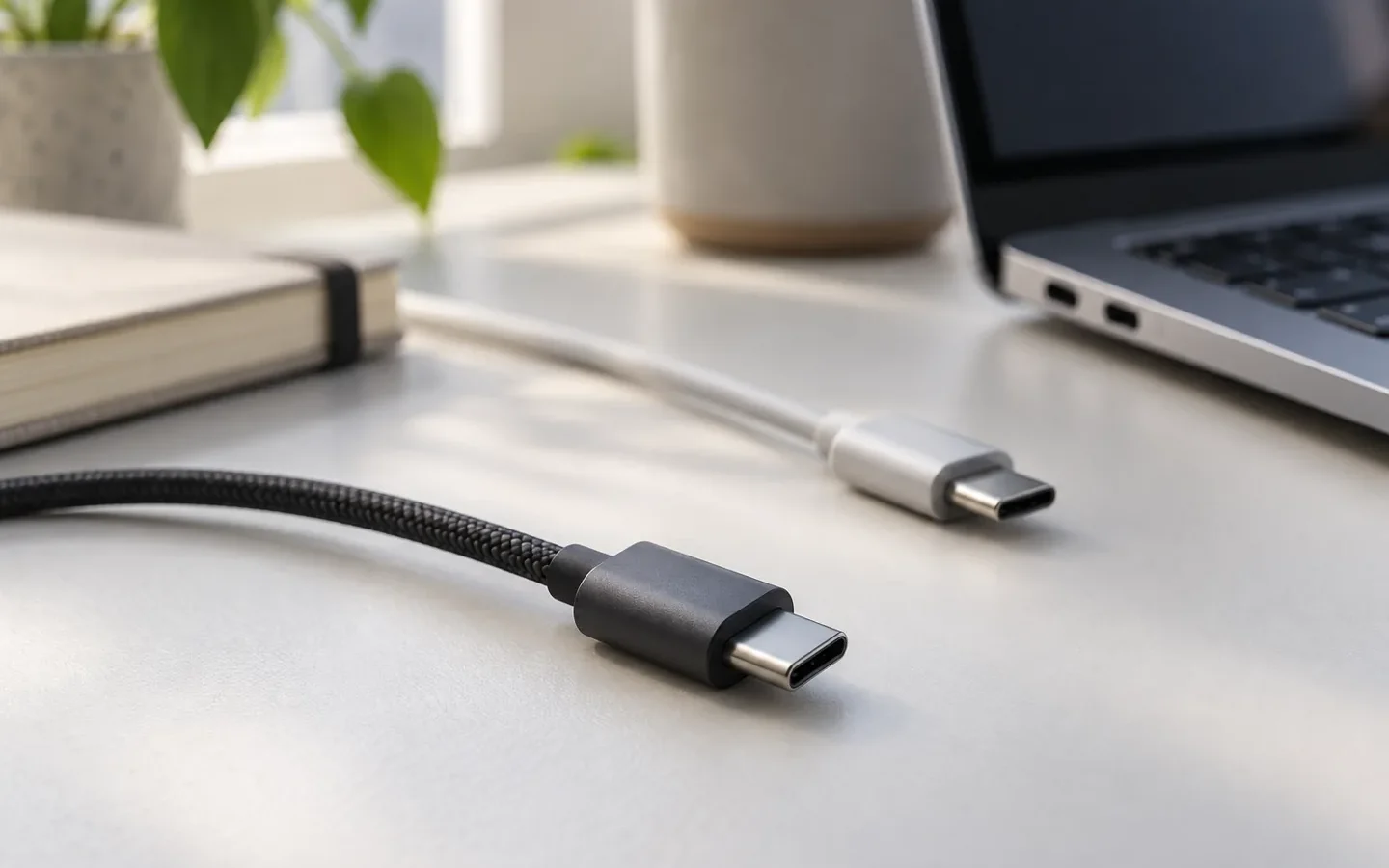
Two cables with identical-looking ends can serve different purposes. Before comparing colours or buying the one with the largest wattage on the box, write down the job: charging a phone, copying files to a drive or connecting an external monitor.
The connector is only part of the specification
USB-IF’s guidance explains that USB-C capabilities vary and that a USB 2.0 Type-C cable cannot carry USB 3.2 or USB4 signals. The plug’s shape alone does not establish its data speed.
Make a note of the computer or phone model, the accessory model and the port you plan to use. Include any dock or adapter between them. That lets you ask a precise question: “Will this connect this computer to this display?” rather than simply asking for a good cable.
Check charging power separately
For certified USB-C to USB-C cables, USB-IF’s certification guidance distinguishes 60 W or 240 W power markings from data speed. These describe different capabilities. A wattage figure is not a promise of fast file transfers or video support.
Look up the cable’s supported power and the requirements stated by the charger and device manufacturers. If a listing says only “fast charging”, ask what that means for your particular combination. Keep the answer alongside the exact product reference.
For files, look for a stated data rate
When copying photographs, video or backups, compare the cable’s stated data rate with the port and drive specifications. USB-IF notes that a connection involving USB 2.0 operates at the lower USB 2.0 speed. A higher-rated cable does not change the other components.
Keep the units with each number when comparing products: Mbps and Gbps are different units. Do not turn an advertised signalling rate into an exact transfer-time promise for every folder on your computer.
For a monitor, ask about video explicitly
Look for compatibility with your computer, display and intended resolution. Do not infer it from the fact that a cable charges the laptop. If the description is incomplete, consult both devices’ documentation or ask the seller for a suitable product reference.
Then consider the physical route: required length, space behind the desk and connector shape. A cable that is awkward to position can pull on the port even when its listed capabilities seem suitable.
Test the task you bought it for
Keep the packaging and try the intended job when the cable arrives: charging, transferring files or connecting the screen. Record the combination you tested before introducing more adapters. If the device itself needs attention, use the business directory to find options and confirm the service with a repairer.
Is the highest wattage always the best choice?
No. Choose specifications that cover the whole job. Power, data, video and length need separate checks; one large number cannot answer every compatibility question.
Sources checked on 23 September 2026.