Image: AI-generated editorial illustration; a fictional scene with no real businesses.
Before deleting photos to make space, establish which account holds them, whether uploading has finished and whether you can open a copy away from your phone. A thumbnail in your gallery does not answer all three questions. Deleting an image from a synced library can remove it from other devices too.
This is easy to overlook after a trip. Your phone is full, some pictures are waiting for a connection and you have two accounts signed in. Finding the originals is a better first step than selecting hundreds of files for deletion.
Know which copy you are looking at
- The phone file: uses local device storage.
- The cloud library: belongs to a particular account and service, and may sync edits and deletions.
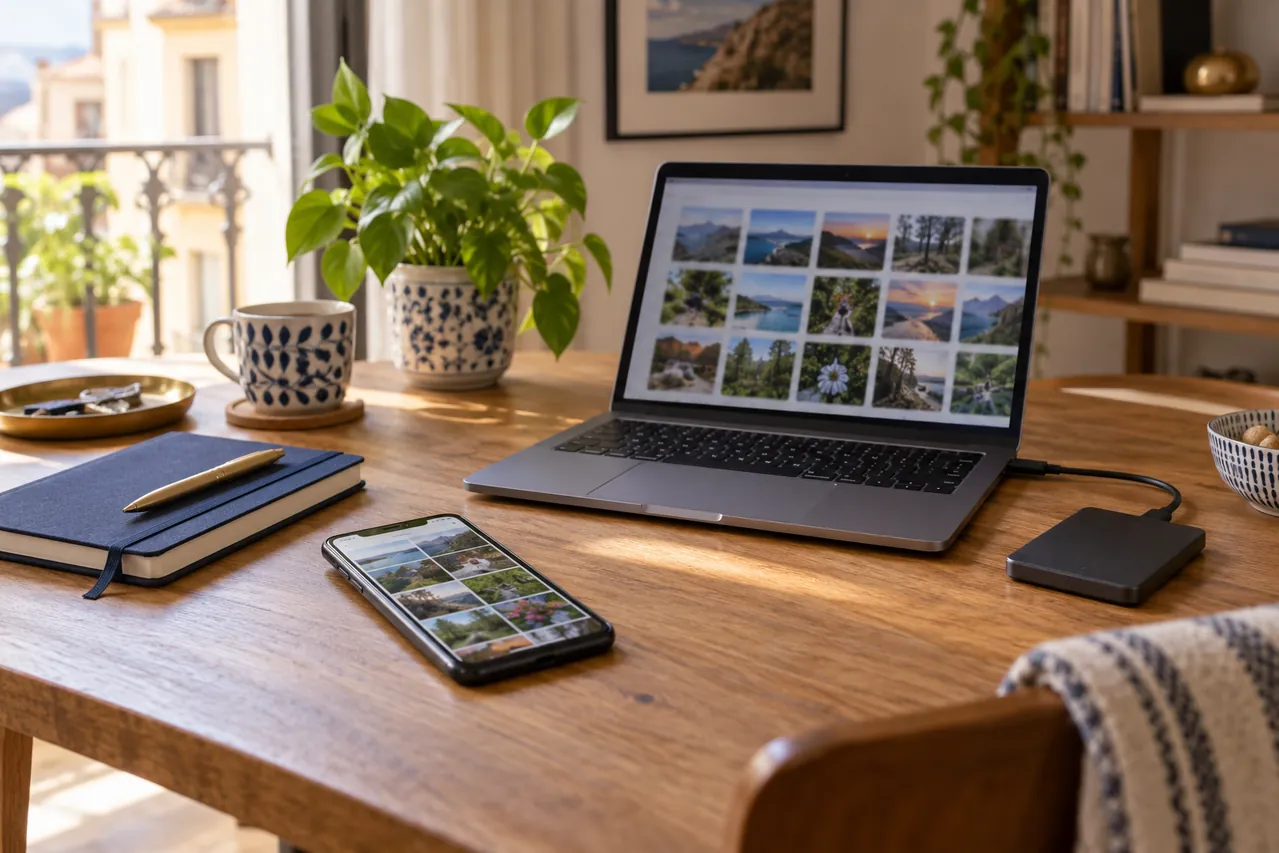
- An independent copy: an exported, checked file on another storage location that does not rely on keeping the item in the synced library.
An album is an organisational tool. Creating another album does not necessarily duplicate a file or protect it against deletion. For irreplaceable pictures, make an independent copy and open several exported files before treating the job as finished.
Google Photos: check the account and upload status
Google’s backup guidance explains how to check the backup account, overall progress and individual items. On Android, also review which device folders are included. Pictures from other apps should not be assumed to be covered. If items are pending, let uploading finish before clearing anything.
Free up space on this device removes local copies that have been backed up. It is different from sending library items to the bin. Afterwards, some photos may no longer be available in your phone’s built-in gallery or when offline. Consider that before using it, particularly before travelling.
iPhone: optimising storage is different from deleting
Apple explains that deleting an item in iCloud Photos affects devices using that library. Those photos are not duplicated in the separate iCloud device backup. Optimise Storage keeps originals in iCloud and can retain smaller versions on the phone. You do not need to delete the library to use this option; the exact controls depend on your software version.
Run a small, meaningful check
- Identify the account containing the collection you want to keep.
- Find a recent photo, an older photo and a video. Check their status rather than relying on thumbnails.
- Open the library on another device or the service’s official website, using that same account.
- Download a sample of originals. Check that pictures open, the video plays and the resolution meets your needs.
- Before a large clear-out, save important images independently and confirm the effect of the command you intend to use.
A sample can expose an obvious problem; it does not prove that every file is safe. For a large transfer, compare folders, dates and pending items too. Emptying the bin should never be part of an experiment.
Why is my phone full when I have cloud space?
Device storage and cloud storage are separate. Originals, apps and downloads can fill your phone while the cloud account still has capacity. Check what uses the space and which options your service offers. Buying more cloud storage is not proof that uploading has finished.
Once you have a checked copy, organise pictures around projects you can recognise later. For a small product collection, our guide to photographing objects with window light can help you make a more consistent series in the first place.
Sources checked on 2 October 2026.