Image: AI-generated editorial illustration; a fictional scene with no real businesses.
To scan a document with your phone, use the scanning option in Notes or Files on an iPhone, or Google Drive on Android. Then check the page edges, reading order and the actual file you intend to send. That final check helps catch blurred text, missing pages and an overlooked reverse side.
Think of a two-page invoice: the first page looks excellent, but the order number is cut off on the second. The file opens normally, yet it is still incomplete. A short routine makes the difference between having a PDF and having a useful copy.
Prepare the paper first
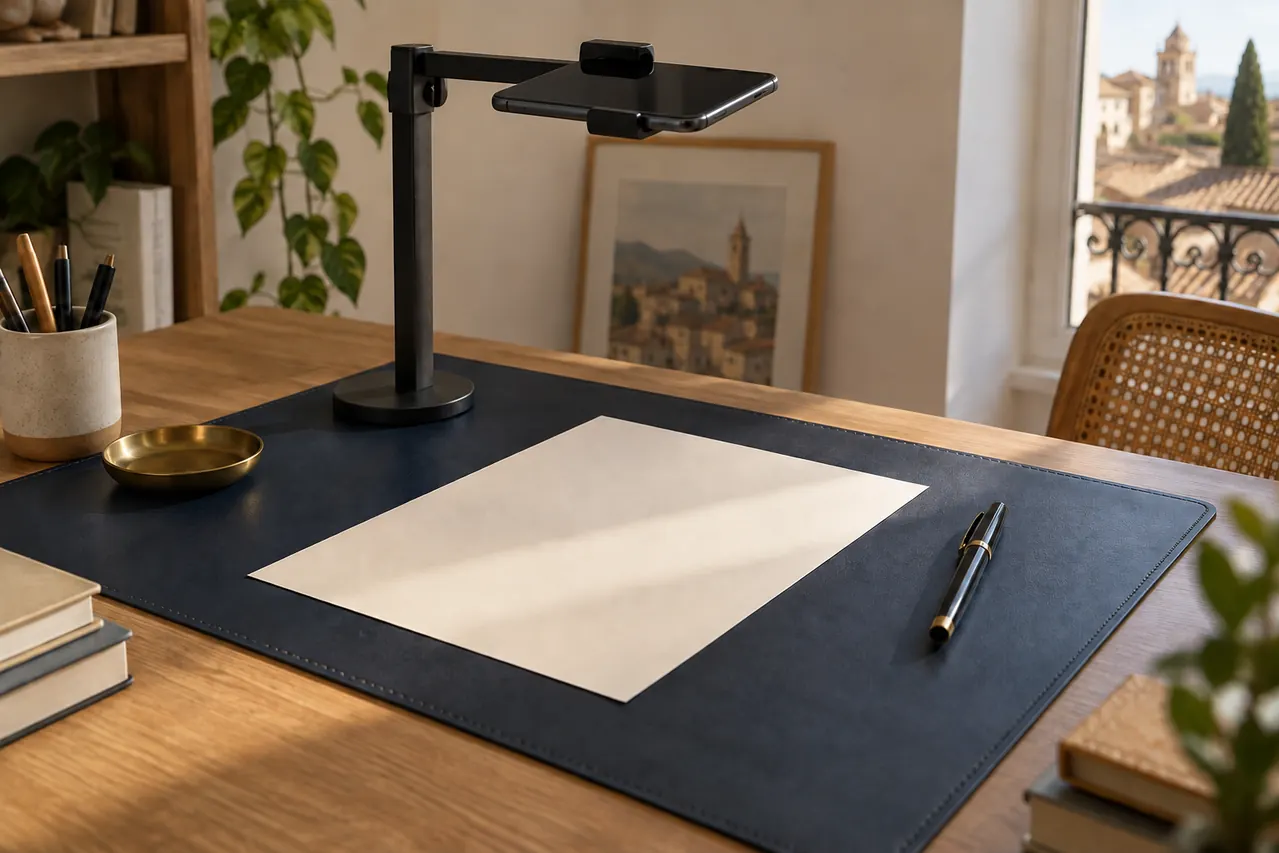
Lay the sheet flat on a contrasting surface. Look for even light and check that neither the phone nor your body casts a shadow across the text. A nearby lamp can create reflections on glossy paper; change its position or angle before taking the scan.
Gather all the sheets, include any reverse sides containing information and decide their order. Move unrelated papers with personal details out of the frame. If you only want one page, first check whether the recipient needs the whole document.
On iPhone: Notes or Files
Apple’s instructions explain how to open a note, tap the attachment button and choose Scan Documents. Adjust the corners if necessary and add further pages. In Files, find scanning under More, then choose a destination when saving. Controls can differ with the installed software version.
On Android: scan in Google Drive
Google’s guide describes opening Drive and tapping Camera. Capture the document, correct the crop and use Add for more pages. Finish by selecting PDF, naming the file and choosing its location. Check which Drive account is active.
Check four things before sharing
- Completeness: count the pages and check the reverse sides.
- Legibility: zoom in on a small number, a date and a faint annotation.
- Framing: inspect all four corners without cutting off stamps or margin notes.
- The saved file: open the finished PDF from its folder rather than relying on the app’s preview.
If anything fails, rescan that page before compressing the file. A smaller unreadable document is still unreadable. When a recipient imposes a file-size limit, keep a good-quality copy and inspect the reduced version separately.
Give it a name you will recognise later
For example, 2026-09-29_lamp_invoice.pdf combines a date, document type and short reference. Avoid putting identity or banking details in the filename unless necessary. Before sending a link, check its access settings; before attaching a file, make sure you selected the intended version.
Will a scan work for every application?
Follow the recipient’s requirements. Do not assume a scan replaces an original or meets a signature requirement. Check the requested format, size limit and supporting documents for that particular application. For another everyday camera task, see our guide to photographing objects using window light.
Sources checked on 29 September 2026.